
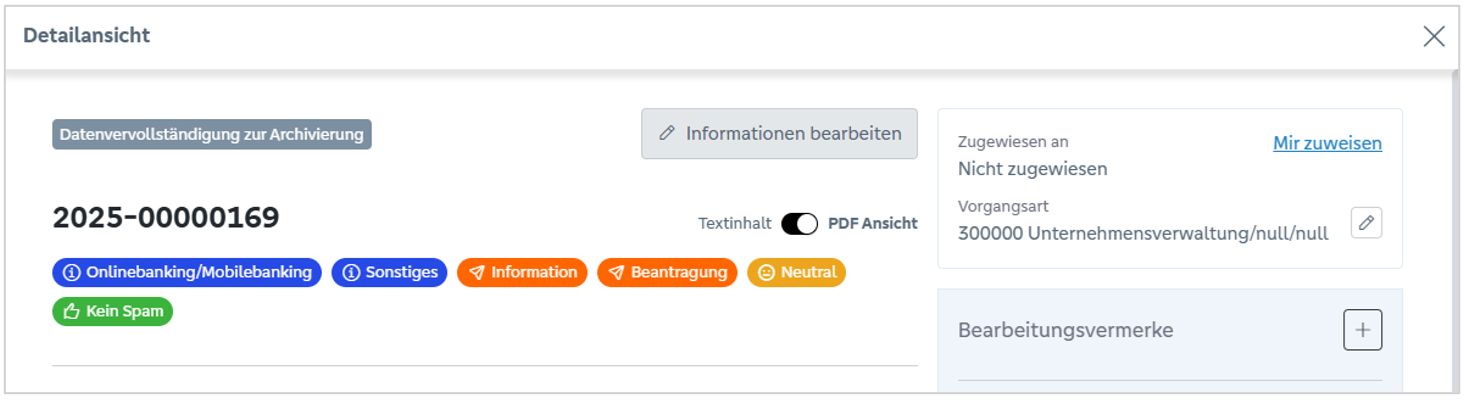
The detailed view icon (at the right-hand end of a mail process) can be used to call up a detailed view of the mail process. In this view, the editor can switch between text content and PDF view. The AI tags of the mail process and the processing notes can also be viewed here. Additional information such as “Assigned to” and “Process type” is displayed on the right-hand side.
Editing functions
Detailed view of a correspondence:
The “Edit information” button offers further editing options. The following tabs are available in this view:
General information: Editing person number, filing location, processor, etc. The buttons are also located at the end of the tab:
AI tags: Contains automatically assigned tags for topics, specifications, moods and spam. These can be adjusted manually.
Display of the various AI tags for the sender’s mood:

Presentation of the spam probability determined by the AI:

Agree21DMS: Depending on the process type, this tab contains different fields for document types, e.g:
Sender: Contains the sender’s data such as name, address and e-mail.
Recipient: Shows the recipient’s information.
Access rights: Additional editors and readers can be assigned here that are not specified by the process type.
Closing and archiving
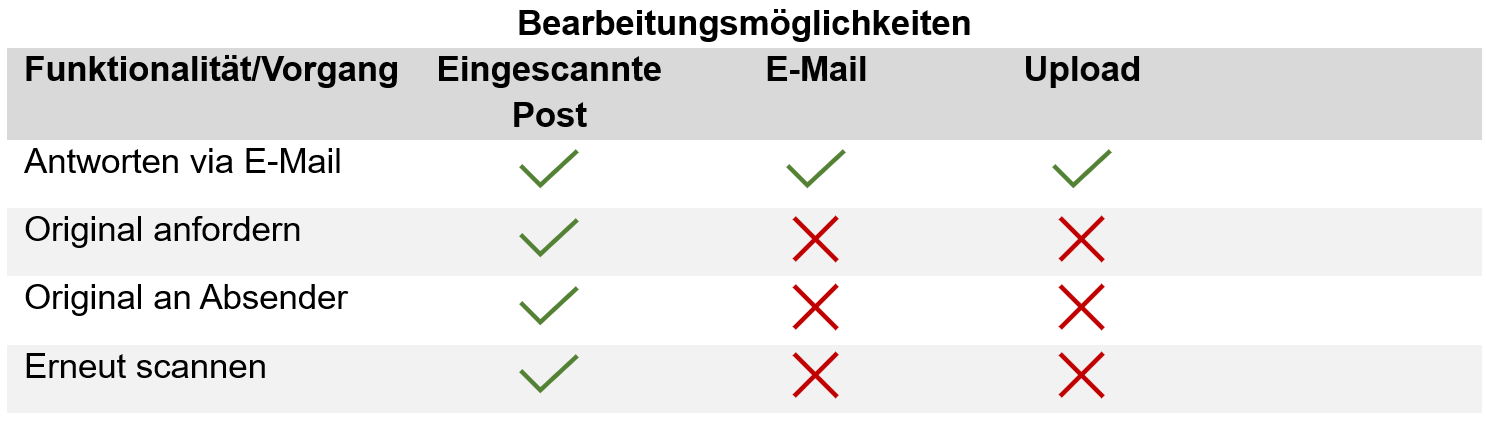
The following table shows the various processing options for the different communication processes.